Video transition
1 / 2
Video transition
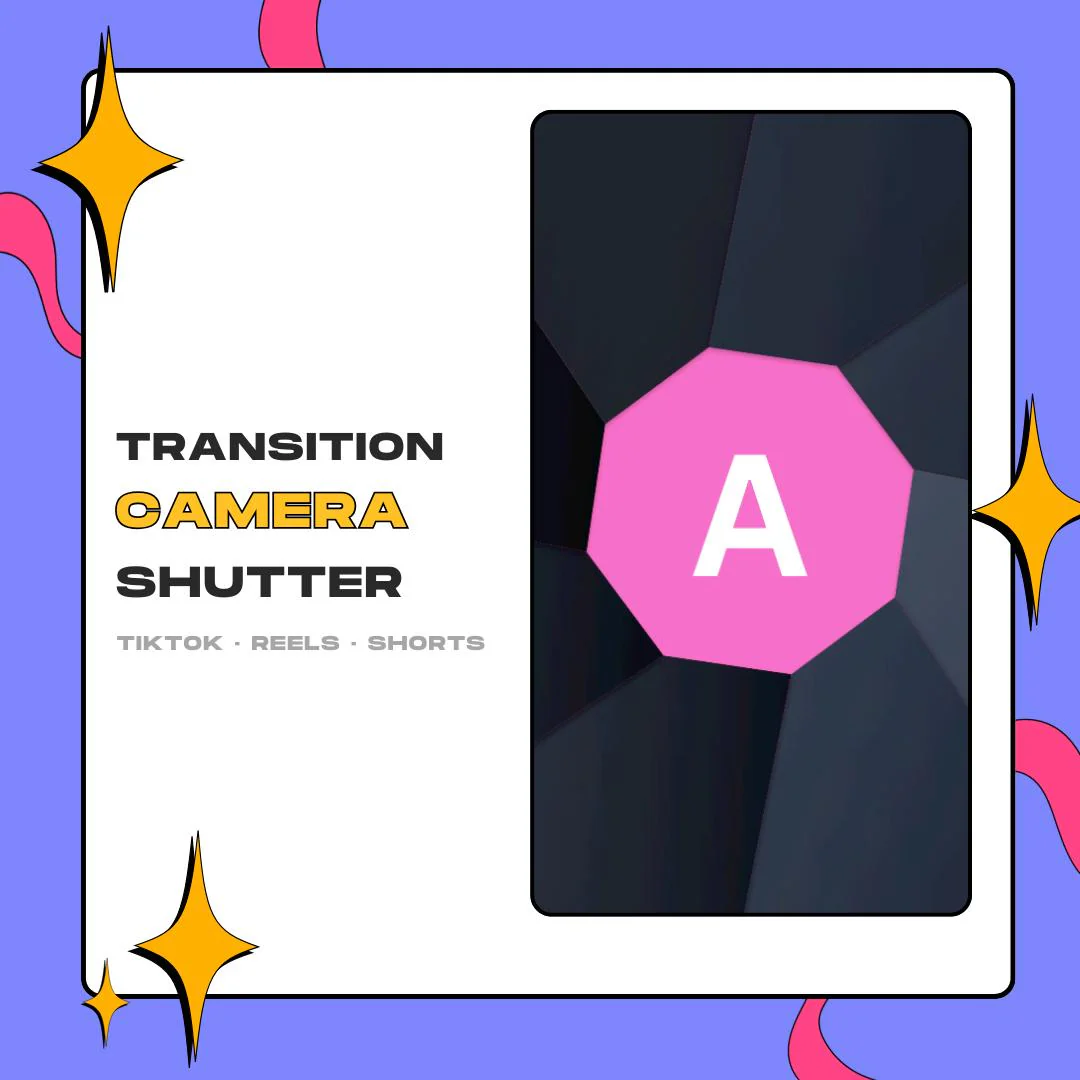
A camera shutter transition for editors: dark aperture blades close over the frame, hide your cut and open on the next shot. Drop the MOV into Premiere, Final Cut, DaVinci Resolve or CapCut and the alpha channel keeps your footage visible around the blades.
$5.00 USD
Instant digital download
the details
Some edits need punctuation: a reveal in a travel reel, an outfit change in a fashion edit, the jump from hook to product in a promo. A shutter cut does that in one motion. Dark, angled blades close like a lens, cover the frame for a beat, then open on the next shot, so the change feels like a photo being taken.
This version is made for editing software first. As a camera shutter transition with transparency, the MOV sits on a track above your clips in Premiere, Final Cut, DaVinci Resolve or CapCut, and only the blades show. Use it in Reels, TikTok and YouTube Shorts, in promos, or anywhere else in your YouTube content.
The asset is vertical, framed for phone-shaped video. A WEBM copy comes along as a fallback for lighter editing setups, and it can also run as a stinger in OBS if you need one. Either way the motion is the same close-and-open shutter, so a promo and a Short can share one look.
what you get
The MOV keeps a transparent background, so it layers over footage in Premiere, Final Cut, DaVinci Resolve or CapCut without keying.
Blades shut over the frame, hold for the cut and open on the next shot, like a lens firing once.
Framed for vertical edits such as Instagram Reels, TikTok and YouTube Shorts.
A second file in WEBM, kept as a fallback for simpler editing setups and for OBS.
Fits travel videos, fashion edits, promos, reels and YouTube content, the projects it was made for.
setup
Get the files through your Etsy download and save the MOV, plus the WEBM if you want it, beside your project.
Import the MOV into Premiere, Final Cut, DaVinci Resolve or CapCut with the rest of your footage.
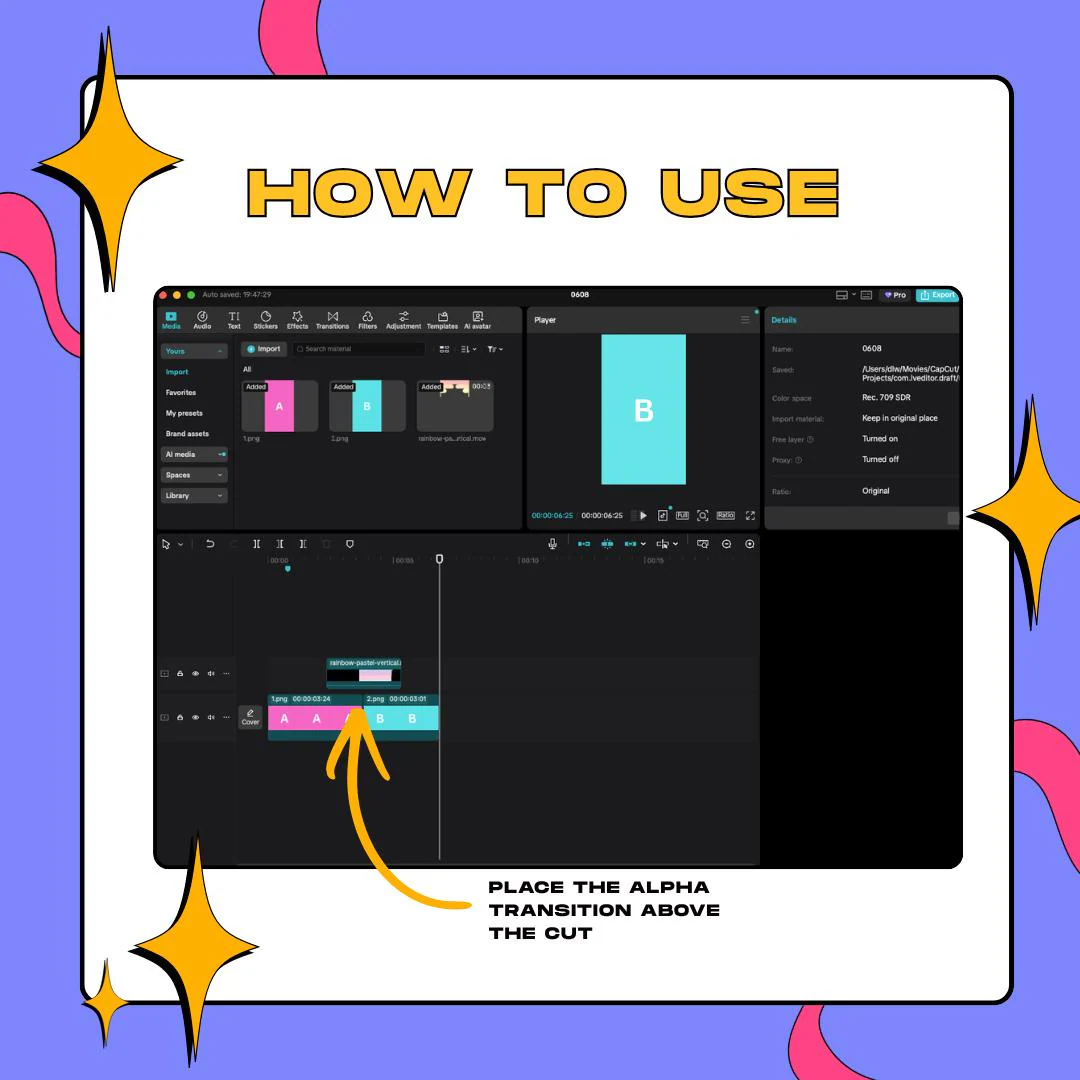
Put it on the video track above your clips, straddling the edit point, the same way the CapCut how-to image shows.
Slide it so the blades are fully closed on the frame where the shots change, then render or export.
questions
No. The MOV comes with an alpha channel, so only the shutter blades appear over your footage and there is nothing to chroma key.
The WEBM fallback can run as an OBS stinger, but this asset is vertical and made for editing. For widescreen scene changes, the shop has a separate camera shutter stinger built for OBS.
Premiere, Final Cut, DaVinci Resolve and CapCut. The how-to image in the gallery uses CapCut: the transition sits on its own track, over the cut between clip A and clip B.
$5.00 USD on Etsy