Stinger transition
Stinger transition
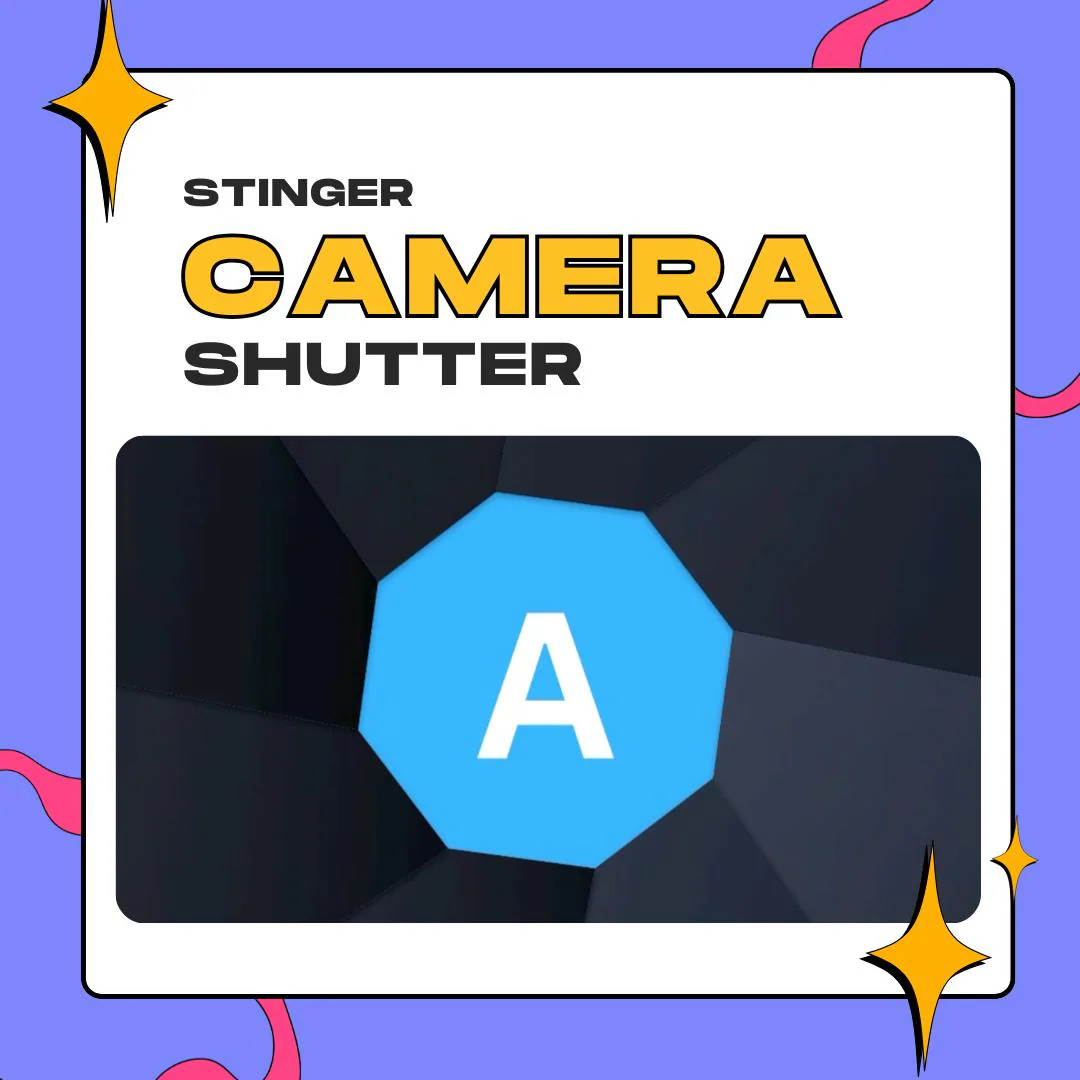
This camera shutter stinger for OBS closes a ring of dark aperture blades over your stream, switches scenes while the lens is shut, then opens on the new one. The stinger itself is one WEBM file with alpha, so there is nothing to install.
$5.00 USD
Instant digital download
the details
A camera shutter already works like a cut: the lens closes, something changes, the lens opens. This stinger borrows that move. Dark, angled aperture blades close toward the middle of the screen until your scene is hidden, OBS swaps scenes behind them, and the blades part again on the new layout.
It suits streams that want a crisp switch without visual noise: IRL and travel streams, art or photography channels, podcasts and just chatting segments. The blades are charcoal and gray, so they sit next to most overlay colors without clashing, and the move reads as deliberate rather than decorative.
The file is a WEBM with an alpha channel, so outside the blades your scene stays visible as the shutter closes and opens. As a camera shutter stinger in OBS, it plays on Twitch, YouTube or wherever OBS Studio sends your stream. Set the transition point to the frame where the shutter is fully closed; a quick preview shows you where that is.
what you get
Angled aperture blades close in toward the center and open back out, the same move a camera shutter makes.
The scene swap happens while the shutter is shut, so viewers never see one layout jump into the next.
Transparent outside the blades, so your scene stays on screen while the shutter closes and after it opens.
One video file and one Stinger entry in OBS, with no plugin, browser source or graphics package to manage.
Charcoal and gray blades that work with most stream color schemes, from bright pastel layouts to dark ones.
setup
Download your Etsy files and keep the shutter WEBM in a folder that will not move.
In OBS Studio, add a transition under Scene Transitions with the + icon and choose Stinger.
Click Browse next to Video File and load the camera shutter WEBM.
With Transition Point Type on Time, move the point to where the shutter is fully closed, testing a few scene switches.
Keep it as the active transition so every switch on Twitch or YouTube runs through the shutter.
questions
Yes. The file has an alpha channel, and OBS Studio plays it in the Stinger transition with the area around the blades left clear.
Yes. A separate camera shutter transition is sold for video editors, with a MOV plus a WEBM fallback. This page is the stinger set up for OBS.
Yes. OBS sends the same picture to any service, so the shutter shows on YouTube just as it does on Twitch.
$5.00 USD on Etsy