Stinger transition
Stinger transition
A Halloween stinger transition with one job: the iron gate of a moonlit cemetery bangs shut across your stream, and when it swings apart again, your next scene is waiting. It comes as a light WEBM and a ProRes MOV, both with real transparency.
$5.00 USD
Instant digital download
the details
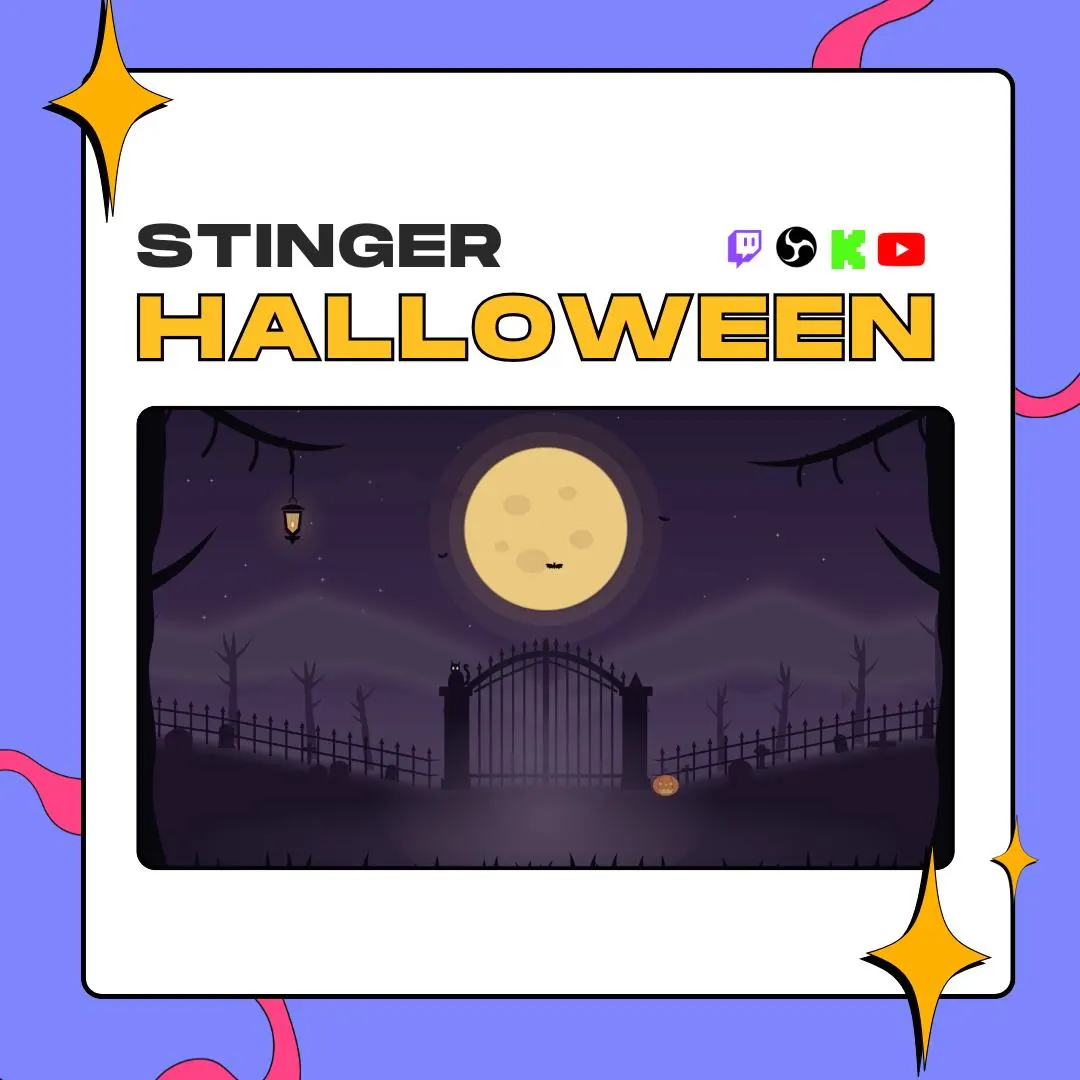
October streams deserve more than an orange overlay and a pumpkin emote. This stinger hands your scene changes to a cemetery gate: the iron bars swing closed across the screen, your scenes switch while it is shut, and the gate opens again on the new view. The cover frame sets the tone with a full moon over a purple night, bare branches, a hanging lantern and a small pumpkin beside the gate.
Both files carry a real alpha channel, so the animation plays on top of your layout instead of inside a black box. The WEBM is tiny and gentle on your CPU, which helps when one PC runs both the game and the stream, while the ProRes MOV is the heavier file for maximum quality. At 1920 x 1080 and 60 fps, this 3-second Halloween stinger transition fits a horizontal Full HD canvas and keeps the swing smooth.
Use it for spooky game nights, horror playthroughs, a haunted subathon or any gothic channel that wants a scene change with some weight. On the streaming side it runs in OBS Studio and Streamlabs Desktop, and from there it goes out to Kick, Twitch, YouTube Live, TikTok Live, Facebook Gaming or Discord. For edited videos, drop it into CapCut, DaVinci Resolve, Premiere Pro, After Effects or Final Cut as an overlay with transparency.
what you get
The gate closes over the scene you are leaving, OBS switches at 1500 ms behind it, and the bars swing open on the new one.
Both files keep a true alpha channel, so the animation sits on top of your scenes with nothing boxed in behind it.
The VP9 WEBM is about 2 MB and the easiest file on your CPU while you play and stream from one machine.
The ProRes 4444 MOV, about 160 MB, is there when you want maximum quality in OBS or in a video editor.
1920 x 1080 at 60 fps for 3 seconds, or 180 frames, so the gate moves cleanly on a horizontal Full HD stream.
Adding it in OBS Studio takes about a minute, and Streamlabs Desktop uses the same steps and the same timing.
setup
Open the PDF from your Etsy order and download the WEBM and the MOV.
In OBS Studio, open Scene Transitions, click + and add a Stinger.
Browse to the WEBM for a light load on your PC, or the MOV when quality matters more.
Choose Time as the transition point type and type 1500 ms into the field.
Switch scenes once to check that the gate shuts, swaps your view and opens again.
questions
Yes. Add it as a stinger the same way you would in OBS Studio and use the same 1500 ms transition point.
Yes. The stinger runs inside OBS Studio or Streamlabs Desktop, so it plays on Kick, Twitch, YouTube Live, TikTok Live, Facebook Gaming and Discord streams alike.
Yes. Drop either file into CapCut, DaVinci Resolve, Premiere Pro, After Effects or Final Cut as an overlay; the alpha channel lets your footage show through the transparent parts.
Start with the WEBM: about 2 MB and the lightest on your CPU. Move to the MOV if you want maximum quality and your machine handles a bigger file.
$5.00 USD on Etsy