Notion widget
1 / 6
Notion widget
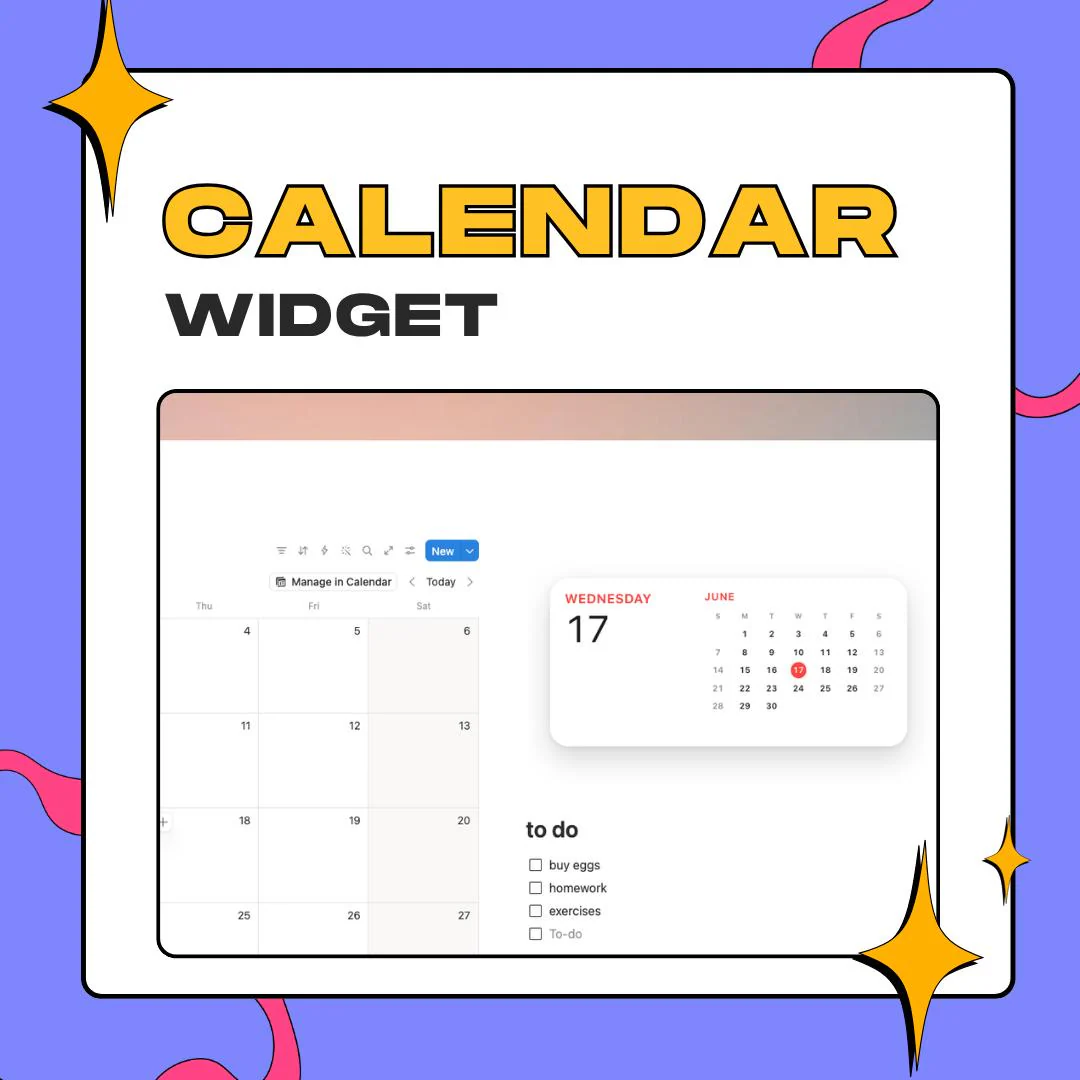
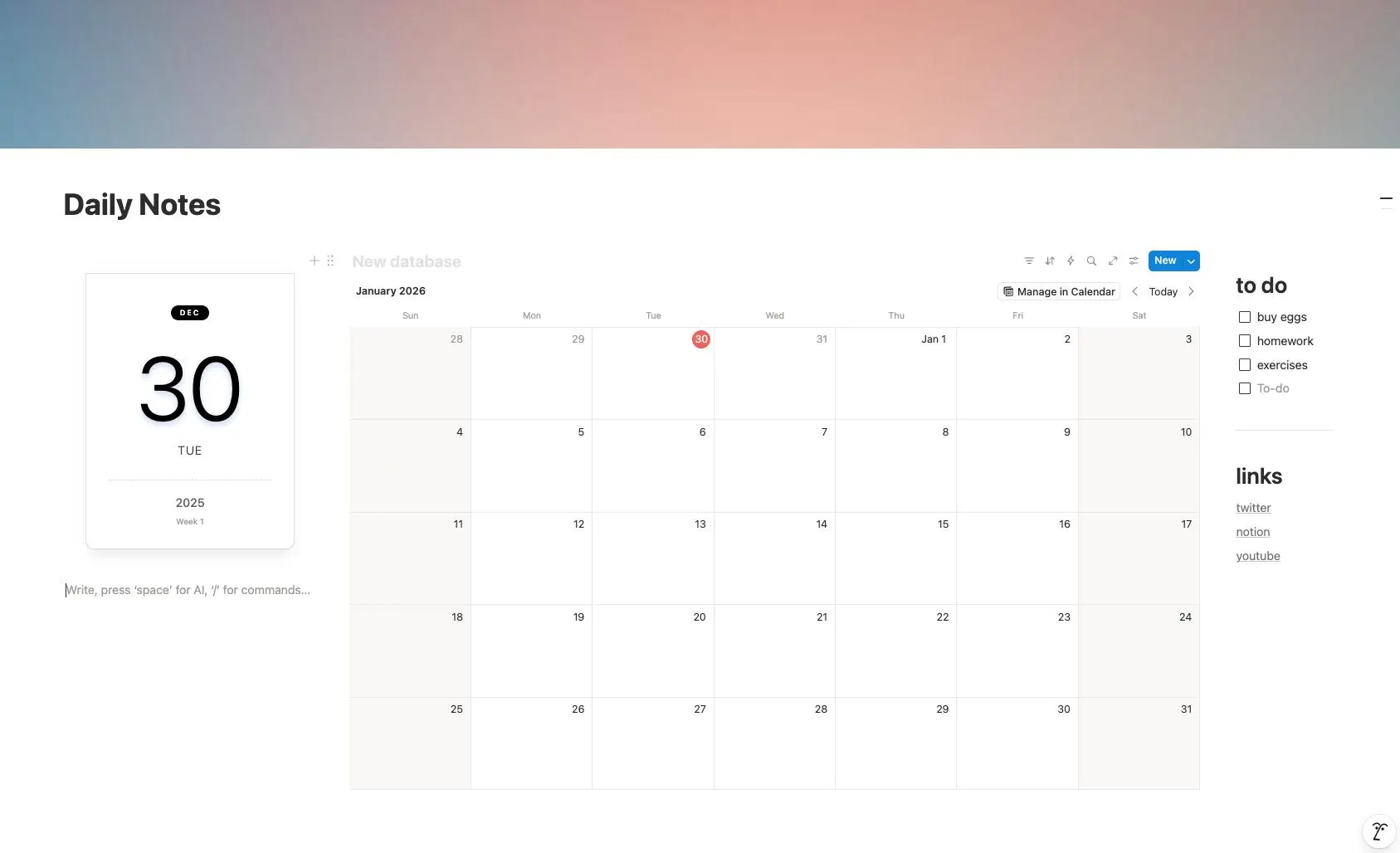
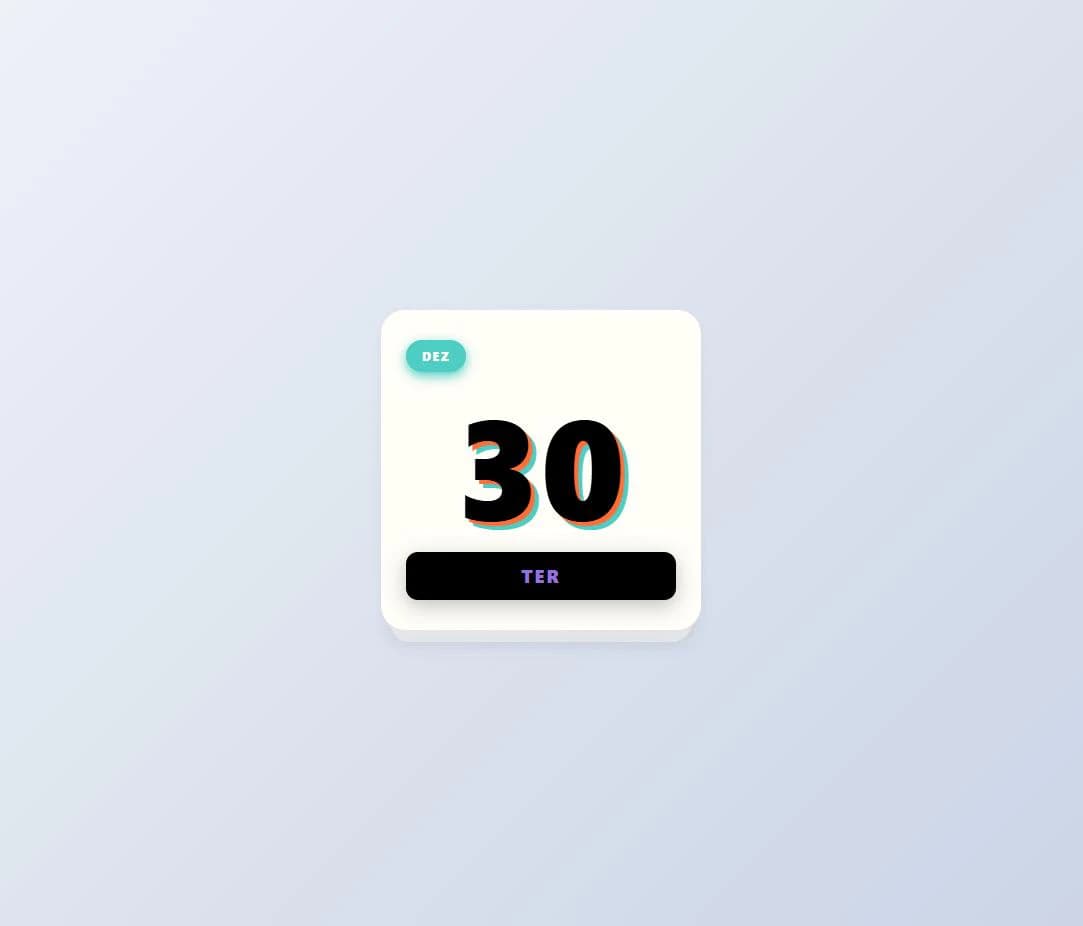
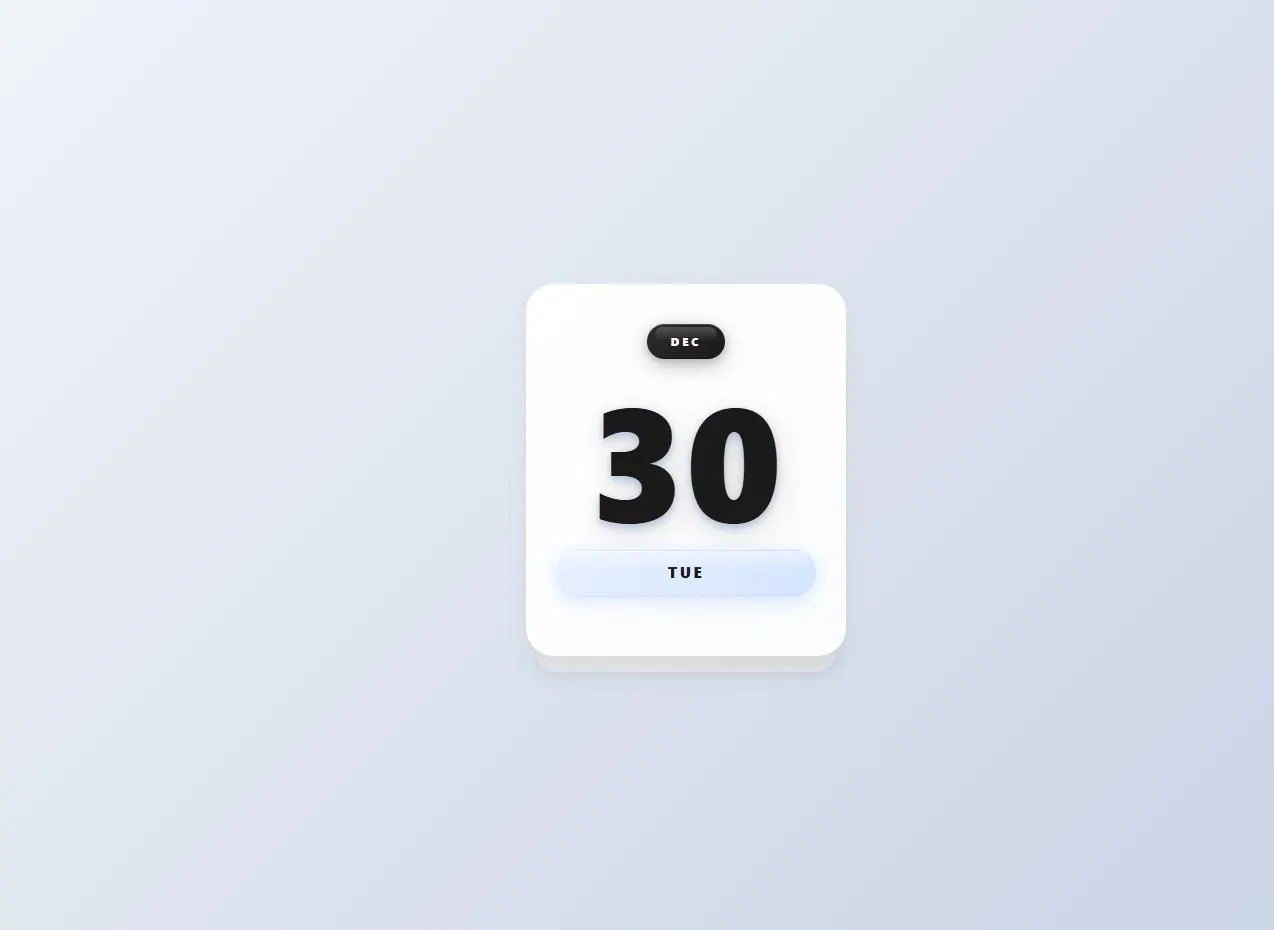
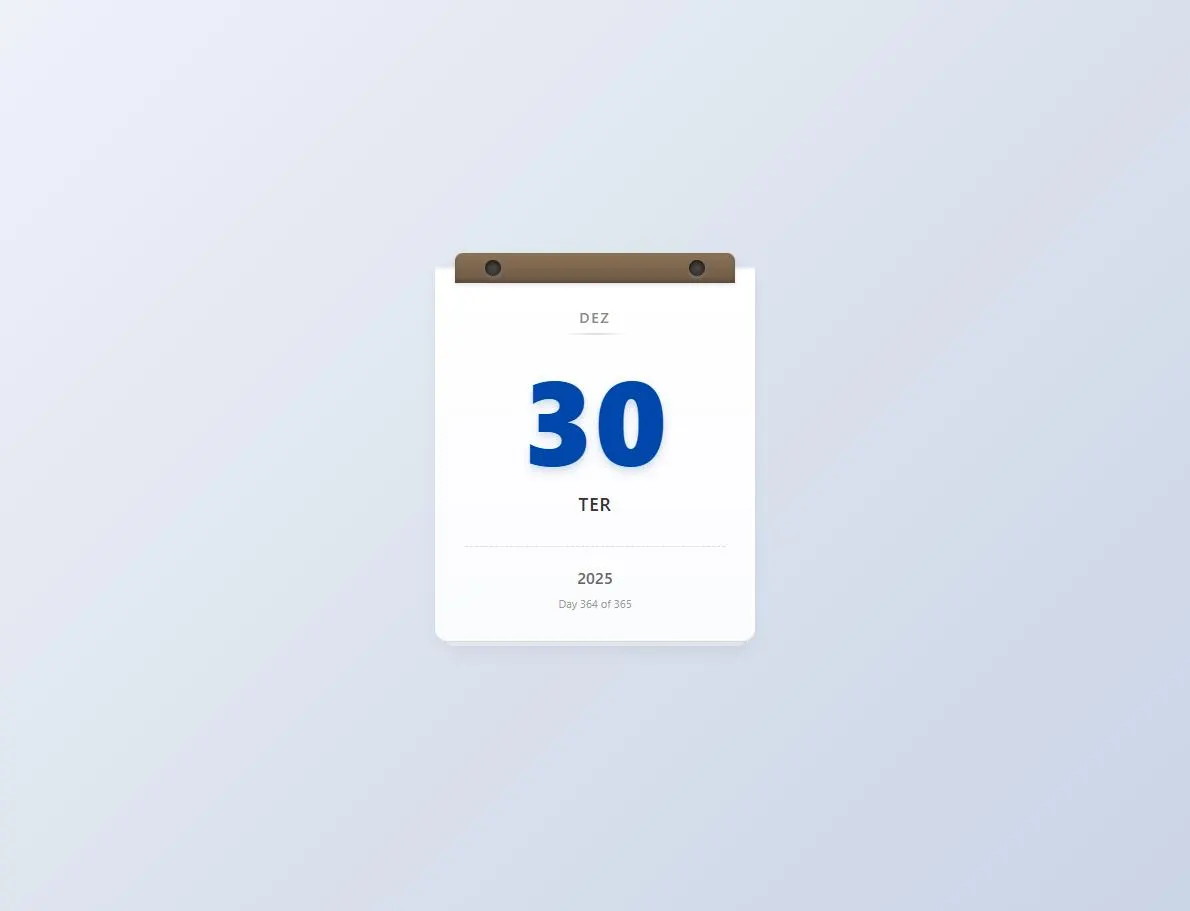
This aesthetic Notion calendar widget shows the date as a small desk card, with a big day number, the month and the weekday, in 6 styles. Pick a look and a background on its settings page, copy the link it makes, and embed it in Notion.
$5.00 USD
Instant digital download
the details
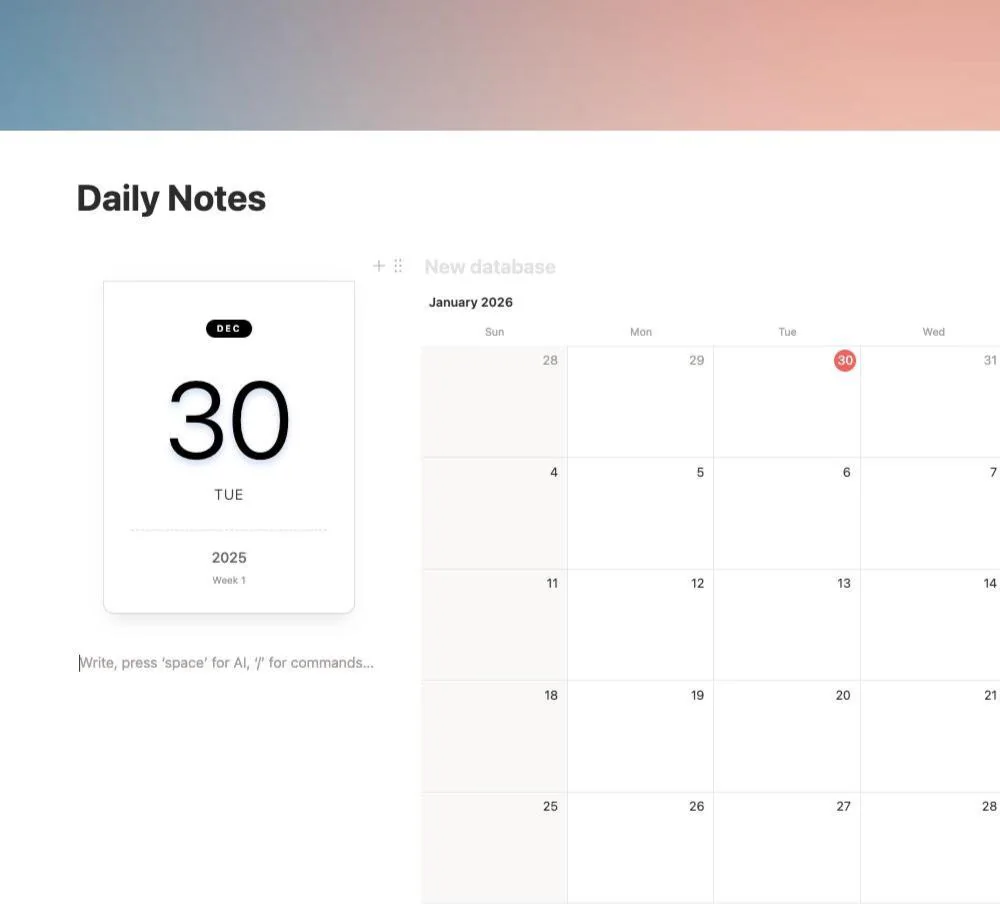
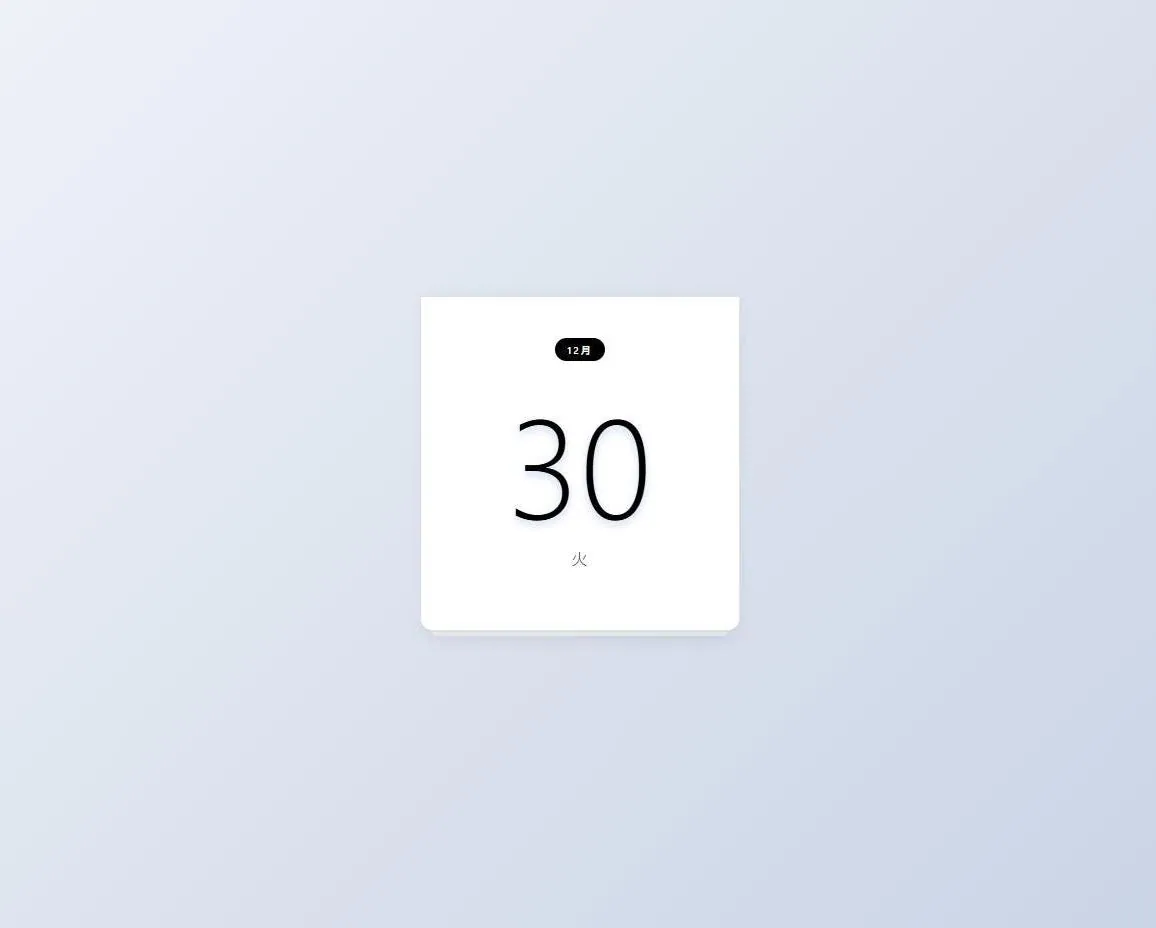
The widget is a small card that reads like a page from a desk calendar: a month tag on top, a large day number, the weekday underneath and, in some styles, a footer with the year. The six styles run from a thin, quiet minimal card to bold numerals with an offset shadow and a tear-off page hanging from a binding. Each one sits on a preset background or any color you pick, so it can match a soft pastel dashboard or a plain white page.
As an aesthetic Notion calendar widget, it does one job well: it puts the date at the top of a page. It fits beside a daily notes database, a to-do list and a few links, as the screenshots show, or at the head of a study space, a bullet journal or a work dashboard. Students, digital planners and Notion template makers get a clean visual anchor that does not compete with the content below it, and minimalist setups get a date that looks designed.
Setup happens on a settings page, not in code. Click the style you want from its preview, set one of the 5 languages, choose a background, and switch the binding or footer on or off. The page builds the embed URL as you go and copies it in one click; in Notion, an /embed block takes it from there. The PDF that comes with it walks through each step, so it works for people who have never embedded anything before.
what you get
Go from a thin minimal card to bold offset numerals or a tear-off page, chosen by clicking a preview instead of editing code.
Month and weekday labels in English, Portuguese, Spanish, Italian or Japanese, so the card matches the page around it.
Six preset backgrounds plus a color picker for anything else, so the card sits on white, pastel or darker pages.
Show or hide the binding strip and the footer line to make the card plainer or more like a real desk calendar.
The settings page writes the embed URL for you and copies it in one click, ready for a Notion /embed block.
setup
Open the PDF instructions from your download and go to the widget's settings page.
Click the style you like, then choose the language and a background, preset or custom.
Turn the binding and footer on or off, then copy the generated embed URL with one click.
In Notion, type /embed where the card should go and paste the URL.
Drag the block's edges until the card sits at the size you want on the page.
questions
No. Every choice is a click on the settings page, which writes the embed link for you. The PDF covers each step, including where to paste the link in Notion.
Japanese, English, Spanish, Portuguese and Italian. The language sets the month and weekday labels on the card, so a Portuguese card reads Dez and Ter where an English one reads Dec and Tue.
The day number large in the middle, the month in a small tag above it and the weekday below. Some styles add a footer with the year, and you can switch that footer off.
No. You get a PDF with the instructions as an instant digital download, and the widget itself runs from its embed link inside your Notion page.
$5.00 USD on Etsy